Feature flags, right inside your Jira tickets
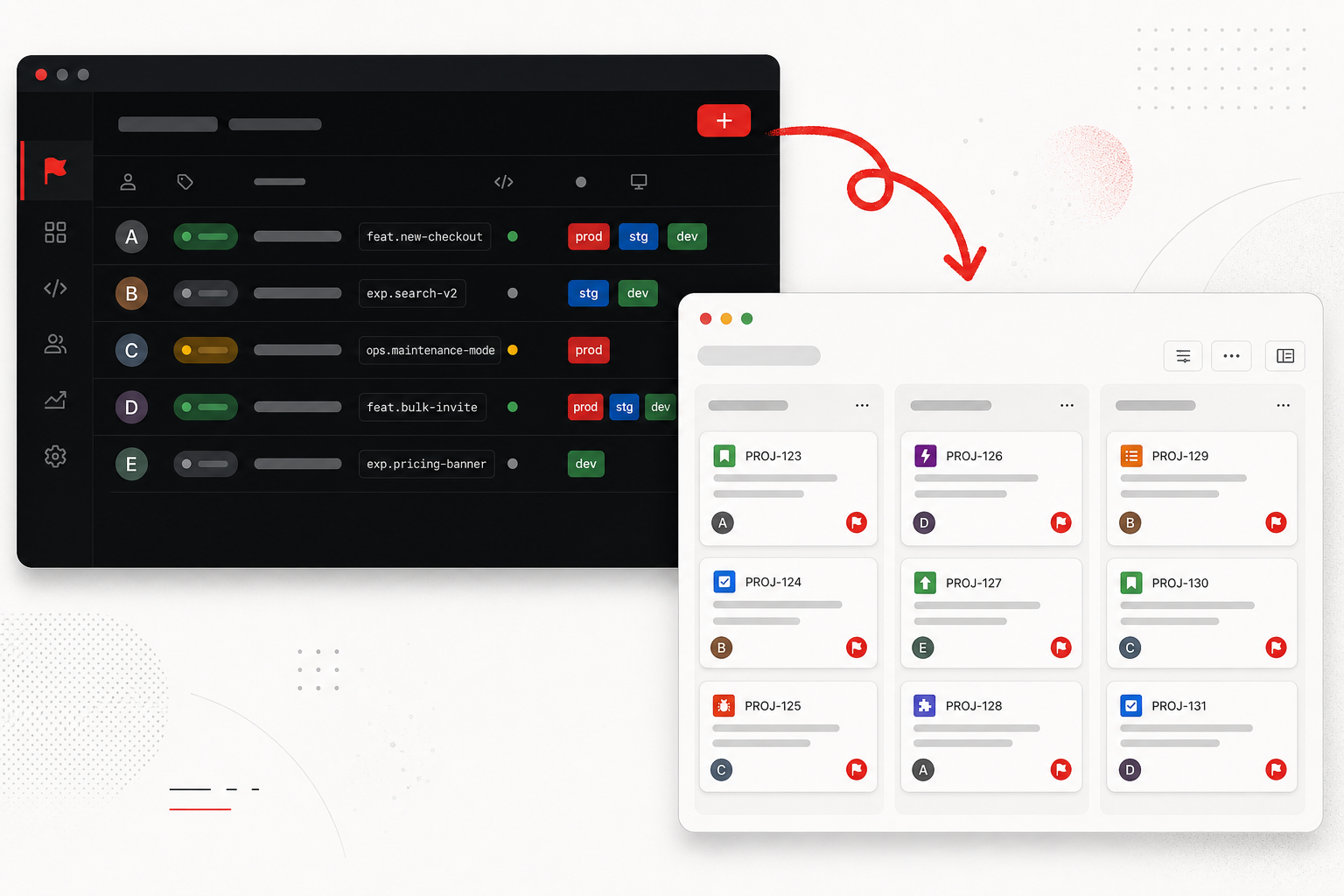
You know the dance. Someone asks "is the new checkout live for everyone yet?" in standup. You open Jira to find the ticket, then open RedPennon in another tab to check the flag, then squint at which environment you’re looking at, then come back and say "uh, mostly?" Multiply that by every flag and every ticket and it adds up to a surprising amount of tab-switching for what should be a one-second answer.
So we put the answer where the question gets asked. The RedPennon Jira integration links your flags to Jira issues and shows each flag’s status and per-environment variations right inside the issue’s Development panel. No second tab.
Heads up: this one lives on the Enterprise plan.
How it actually works
It’s a single Atlassian Forge app you install from the Marketplace. Once it’s installed and linked to your RedPennon organisation, we push flag data into Jira’s Development panel using Atlassian’s own Feature Flags API. It shows up in the place Jira already reserves for this, not some bolted-on widget.
For every linked issue, you get:
- The flag name, whether it’s on or off right now, and a link straight back to RedPennon.
- A row per environment: its name, its type (production, testing, or development), and the variation being served there. The whole picture, at a glance.
Connecting your site (it’s quick)
You’ll need to be an organisation owner or admin. The good news is there are no API keys or OAuth scopes to wrangle. You install the app and paste in a short-lived code. That’s it.
- Install the app. Find RedPennon Feature Flags in the Atlassian Marketplace and add it to your Jira site.
- Grab a linking code. In RedPennon, head to Settings > Integrations > Jira and hit Generate linking code. You’ve got 30 minutes before it expires, which is plenty.
- Link it up. Over in Jira, open Apps > RedPennon Feature Flags > Setup, paste the code, and select Link this site.
Changed your mind later? Unlink whenever you like. Your existing ticket links stick around; we just stop pushing updates until you reconnect.
Pointing a flag at a ticket
Editing a flag’s ticket links needs publisher permission (the same as editing tags). When you create a flag, type Jira keys like WEB-123 into the Jira Ticket field, then hit comma or Enter and each one turns into a chip. On a flag that already exists, the Connected Jira ticket IDs field under Manage works the same way. We validate the keys against the standard Jira format and upper-case them for you, so web-123 and WEB-123 end up the same. The linked tickets then show up as pills on the flag’s Overview page.
When does it update?
Pretty much whenever something changes that’s worth knowing about:
- You add a ticket ID to a flag, or take one off.
- A flag’s status moves along (development, then live, then complete, then archived).
- The variation served in an environment changes.
All of that is pushed to Jira in real time. The one exception is the issue summary, status, and type we show back inside RedPennon. Those we refresh on a nightly schedule, since they don’t need to be instant.
Why we bothered
A flag is really a decision about who gets what, and that decision makes the most sense sitting next to the work it’s gating. When the engineer reviewing a ticket can see "on in production, off in testing" without leaving the page, there’s less guessing, fewer "wait, is this live?" messages, and a lot less context lost between tools. Small thing. Saves a surprising amount of friction.
If you want the step-by-step, the docs have you covered.